Ist Erfolgreiches verkaufen im Handel und Online möglich ohne einen EAN Code ?
Nein , wer heut zutage erfolgreich verkaufen möchte muss seine Produkte mit diesen EAN Code versehen.
Der EAN Code wird hauptsächlich in Lebensmittelsupermärkten, in denen der Erfassungsvorgang wegen der großen Anzahl von Artikeln je Kunde besonders arbeitsintensiv ist, verwendet. Die Verpackungen der Erzeugnisse sind mit der Europäischen Artikelnummer (EAN) bzw. der GTIN (Globale Artikelidentnummer, Global Trade Item Number), als Barcode verschlüsselt, bedruckt.
Der Standard EAN Strichcode hat 13 Ziffern. Für kleine Produkte gibt eine eine kurze Version mit 8 Ziffern, den EAN 8 Code.
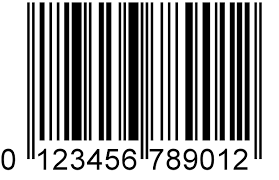 Der EAN-13 bzw. die GTIN ist wie folgt aufgebaut:
- Die ersten beiden Stellen des EAN-13 Codes bzw. der GTIN kennzeichnen das Herstellerland (Länderpräfix). Die Kennziffern 40-43 stehen z.B. für den Standort Deutschland.
- Die nächsten fünf Stellen kennzeichnen den Hersteller des Produktes. Diese Nummer wird in Deutschland von der GS1 Germany GmbH, vergeben.
- Die folgenden fünf Stellen bilden die individuelle Artikelnummer und klassifizieren das Produkt des Herstellers. Diese Nummer wird direkt vom Hersteller vergeben.
Geschichtliches: Der EAN Code wurde 1977 von zwölf Staaten (darunter alle EG-Staaten) eingeführt. Zwischenzeitlich haben sich weitere Länder dieser Übereinkunft angeschlossen, u.a. nahezu alle westeuropäischen Länder, USA, Kanada, Australien und Japan. Heute wird die EAN (Europäische Artikelnummer) als GTIN (Globale Artikelidentnummer, Global Trade Item Number) bezeichnet.
Der Erfassungsvorgang an der Kasse eines Supermarktes ist durch den EAN bzw. GTIN Code stark vereinfacht und beschleunigt worden. Die Kassiererin gibt die Verkaufsdaten nicht mehr über die Tatstatur der Kasse ein, sondern sie führt die Ware einfach mit dem Balkencode nach unten über den Scanner. Der Scanner ist ein Lesegerät, welches den Barcode einliest und an die Computerkasse weitergibt. Mittels der so eingelesenen Artikelnummer holt sich die Computerkasse nun die dazugehörige Artikelbezeichnung und den Preis aus der Datenbank des Supermarktes. Weitere Erfassungsvorgänge sind nicht mehr nötig, es sei denn, der Barcode ist durch äußere Einflüsse nicht mehr lesbar und muss manuell über die Tastatur eingegeben werden. EAN Nummern sind für alle Produktklassen vom Vorteil wenn diese mit Barcodes auch im Einzelhandel verkauft werden.
Vorteile bei Verwendung des EAN bzw. GTIN Codes:
1. Wegfall der Etikettierung der Waren. Die Preisauszeichnung beschränkt sich auf die Regale.
2. Zeiteinsparung und erhöhte Sicherheit durch Vermeidung von Tippfehlern beim Kassiervorgang.
Welcher Hersteller verbirgt sich hinter einer EAN-13 bzw. der GTIN?
Mittels GEPIR können Sie den Hersteller herausfinden, welcher sich hinter einem EAN-13 bzw. GTIN Code verbirgt. GEPIR ist eine weltweite Adressdatenbank der am ILN / EAN-System teilnehmenden Unternehmen.
Weitere Informationen zu diesem Thema bei Wikipedia:
http://de.wikipedia.org/wiki/European_Article_Number